The OM365DO Orchestrator
GitOps-driven deployment and management for Microsoft 365. Define your tenant configuration as code, deploy through approval-gated pipelines, and maintain full history across every client.
What is OM365DO?
OM365DO is a Configuration-as-Code solution for Microsoft 365. It enables MSPs and IT teams to:
- Define M365 configurations as JSON files in Git repositories
- Deploy configurations via Azure DevOps pipelines with approval gates
- Use the same baseline across unlimited tenants
- Get clear, actionable feedback on every deployment
System Architecture
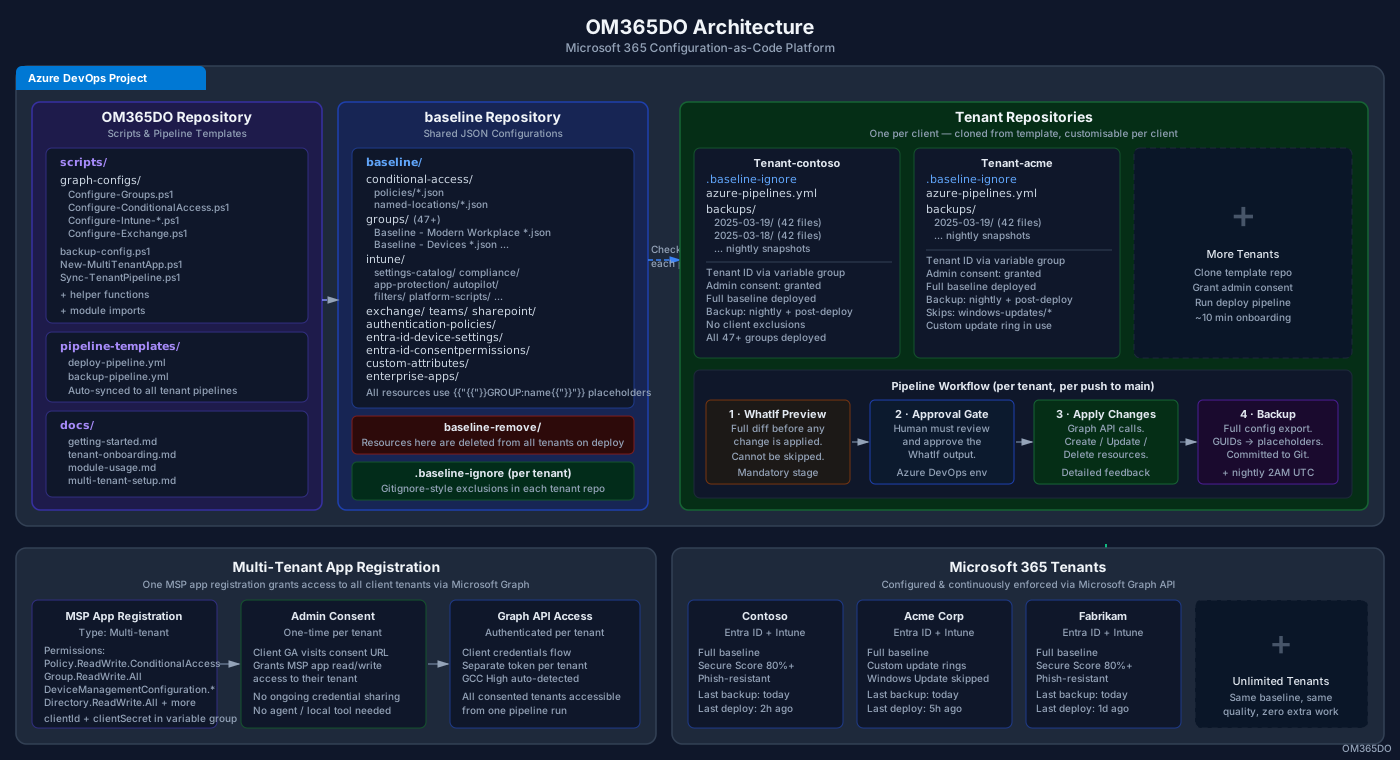
GitOps Approach
OM365DO follows a GitOps model where configurations are stored as JSON files in Git repositories and deployed through CI/CD pipelines. This gives you:
Version Control
Every change tracked in Git history with author and timestamp.
Audit Trail
Who changed what, when, and why — always available.
Rollback Capability
Revert to any previous configuration state with a single commit.
Review Process
Pull requests for changes before they reach the pipeline.
Approval Gates
Human approval required before any configuration is applied.
Repository Structure
A typical OM365DO tenant repository follows this structure:
Tenant-contoso/
├── baseline/
├── authentication-policies/
│ ├── microsoft-authenticator.json
│ └── passkeys-fido2.json
├── conditional-access/
│ ├── named-locations/
│ ├── policies/
│ └── optional-applications.json
├── custom-attributes/
│ ├── attribute-definitions/
│ └── attribute-sets/
├── enterprise-apps/
├── entra-id-consentpermissions/
│ ├── permissionClassifications/
│ └── policies/
├── entra-id-device-settings/
│ ├── device-registration-policy.json
│ └── entra-id-settings.json
├── exchange/
│ └── transport-rules/
├── groups/
│ ├── Baseline - Modern Workplace Users.json
│ ├── Baseline - Modern Workplace Devices.json
│ └── ... (47+ groups total)
├── intune/
│ ├── app-protection/
│ ├── autopilot/
│ ├── compliance-policies/
│ ├── device-configurations/
│ ├── endpoint-security/
│ ├── filters/
│ ├── mobile-apps/
│ ├── platform-scripts/
│ ├── settings-catalog/
│ │ ├── Windows Defender.json
│ │ └── Windows Defender.assignment.json
│ ├── windows-feature-updates/
│ ├── windows-quality-updates/
│ └── windows-updates/
├── sharepoint-settings/
└── teams/
├── baseline-remove/ (resources to delete from all tenants)
├── conditional-access/
├── groups/
└── intune/
├── backups/ (nightly automated snapshots)
├── .baseline-ignore (optional — per-client exclusions)
└── azure-pipelines.yml
Group Templating
Instead of hardcoding group GUIDs — which differ in every tenant — you reference groups by display name. OM365DO resolves them to the correct GUID at deployment time, so the same baseline works everywhere. The backup pipeline does the reverse: it replaces GUIDs in exported files back to display name placeholders, keeping backup files human-readable and directly reusable as baseline configurations.
Don't do this
"groupId": "a1b2c3d4-5678-90ab-cdef"
Hardcoded GUID — only works in one tenant, unreadable in backups
Do this instead
"groupId": "{{GROUP:Baseline - Users}}"
Resolved to the correct GUID on deploy — restored to this placeholder in backups
Two-way resolution
Deploy: {{GROUP:name}} → live GUID in the tenant.
Backup: live GUID → {{GROUP:name}} placeholder back in the file.
This means backup files can be copied directly into any other tenant's baseline and deployed without modification.
Separate Assignments
Policy configurations and their assignments are stored in separate files. This lets you change who gets a policy without modifying the policy definition itself.
Per-Client Policy Exclusions — .baseline-ignore
Place a .baseline-ignore file in the root of any tenant repo to exclude specific baseline files from being deployed to that client. Uses gitignore-style pattern matching — no baseline changes needed.
Example .baseline-ignore
# Skip all Windows Update ring policies for this client
intune/windows-updates/*
# Skip a specific CA policy
conditional-access/policies/Baseline - Block Device Code Flow.json
# Skip all AppLocker settings
intune/settings-catalog/*AppLocker*
How it works
- • Patterns are matched against each baseline file path before deployment
- • Matching files are logged as
[IGNORED]in the pipeline output — no error - • The shared baseline is untouched — only this tenant skips the matched files
- • Works in both Plan (WhatIf) and Apply stages
Resource Protection — OM365DO:IGNORE
Any M365 resource whose Description field contains OM365DO:IGNORE is skipped by the engine during both Plan and Apply stages. This lets clients protect hand-crafted resources from ever being overwritten.
Supported resource types
Configuration
The marker text and whether protection is active are controlled in om365do-options.json:
{
"protectionMarker": "OM365DO:IGNORE",
"protectionMarkerEnabled": true
}
Protected resources appear under a "PROTECTED RESOURCES" section in Plan output.
Removing Configurations — baseline-remove/
Resources placed in the baseline-remove/ folder are deleted from all tenants during deployment. This is how you retire a policy from the entire fleet in a single commit.
Supported removal types
- • Conditional Access policies
- • Security Groups
- • Intune policies (all types)
- • Custom Security Attributes
Removal runs after all create/update operations. Resources protected by OM365DO:IGNORE or .baseline-ignore are not deleted even if listed here.
Conditional Access State Sync
Controls how OM365DO handles the enabled/disabled state of Conditional Access policies. Configured in om365do-options.json under conditionalAccess.stateSync.
preserve Default If a CA policy is currently disabled in the tenant, leave it disabled — even if the baseline has it enabled. Safe for gradual rollouts.
baseline Strict Always sync the enabled/disabled state to exactly match what is in the baseline file. Ensures full policy enforcement.
enableOnly Cautious Only enable policies — never disable them via automation. Useful when disabling a policy requires a manual review process.
Multi-Tenant Architecture
For MSPs managing multiple tenants, OM365DO supports a shared baseline with per-tenant repositories. Each tenant repo inherits shared configurations while maintaining tenant-specific overrides and assignments.
baseline-repo
Shared configurations
Deployment Workflow
Every deployment follows a safe, predictable three-stage workflow:
WhatIf Preview
All scripts run with the -WhatIf flag. You see exactly what will happen before anything changes.
## Processing Intune Configurations
→ Would CREATE: 5 policies
→ Would UPDATE: 12 policies
○ No changes: 83 policies
Approval Gate
Pipeline pauses and waits for human approval. Configure who can approve in Azure DevOps environments.
Apply Changes
After approval, configurations are applied via Microsoft Graph API. Each resource reports its status.
✓ Created: Windows Defender Antivirus
✓ Updated: BitLocker Encryption
✓ Assignments applied: 8 policies
○ No changes: 83 policies
##[command] All Intune policies configured successfully!
Automated Backup
Immediately after a successful deployment, the backup pipeline runs automatically — exporting the full current configuration state and committing it to the tenant's own Git repository as a timestamped snapshot. Because every backup is a Git commit, the repo builds up a complete, permanent history of the tenant's configuration over time. Any past state is instantly recoverable.
##[section] Post-Deployment Backup
Exporting Conditional Access policies...
Exporting Intune configurations...
Exporting Groups, Exchange, Teams...
✓ Backup committed to backups/ (42 files)
Deployment Feedback
OM365DO provides detailed, actionable feedback for every policy:
##[section] Summary
Total policies: 120 (118 processed, 2 blocked)
✓ Created: 5
✓ Updated: 12
✓ Assignments applied: 8
○ No changes: 93
✗ BLOCKED: 2 (missing groups)
##[error] BLOCKED POLICIES - Cannot deploy due to missing dependencies:
✗ [settings-catalog] New Feature Policy
Missing: Baseline - Feature Pilot Users
By Policy Type:
✓ settings-catalog: 3 created, 5 updated, 42 unchanged
✓ compliance-policies: 1 created, 2 updated, 15 unchanged
✓ device-configurations: 1 created, 5 updated, 36 unchanged
═══════════════════════════════════════════════════
DETAILED CHANGES
═══════════════════════════════════════════════════
┌─ [settings-catalog] Windows Defender Settings
│ defenderCloudBlockLevel: 'high' → 'highPlus'
│ Description: 'Old desc' → 'Updated description'
└─────────────────────────────────────────────────
Handling Errors
OM365DO catches common issues before they become problems:
Missing Groups
If a policy references a group that doesn't exist, the deployment is blocked with a clear message:
API Errors
Graph API errors are captured with full details, not hidden behind generic messages:
Failed: Windows Update Ring
Code: BadRequest
Message: Property 'featureUpdatesDeferralInDays' must be between 0 and 365
Continue on Error
When one policy fails, OM365DO continues processing the rest. You get a complete summary at the end showing all successes and failures.
Best Practices
WhatIf is Mandatory
The preview stage cannot be skipped — every pipeline run produces a full WhatIf report before the approval gate. Review it before approving.
Deploy Groups First
Ensure all referenced groups exist before deploying policies. The pipeline handles this order automatically.
Use Wave Deployments
For new policies, target Wave 1 (pilot) first. Monitor for issues, then expand to Wave 2 and Wave 3.
Test in a Dev Tenant
If possible, test baseline changes in a development tenant before deploying to production.
Backups Are Automatic
The backup pipeline runs nightly and after every successful deployment — no manual action needed. A full configuration snapshot is always committed to Git.
Backup Pipeline
A dedicated backup pipeline runs automatically each night at 2 AM UTC, exporting every client's live M365 configuration to their Git repository. Because everything is stored as plain JSON files in Git, you can copy files from any past backup commit back into the baseline and re-run the deploy pipeline to restore that state.
What gets backed up
How restore works
- 1. Browse the
backups/folder in the tenant repo — one commit per night - 2. Copy the relevant files from that backup commit into your baseline folder
- 3. Trigger the deploy pipeline — changes are re-applied to the live tenant
Tenant Onboarding
Adding a new client tenant takes around 10 minutes and requires no local tools — everything happens in a browser and Azure DevOps.
Admin Consent
The client's Global Admin visits a one-time consent URL. This grants the MSP's app registration read/write access to the tenant via Microsoft Graph.
Create Repo & Variable Group
Create a new Azure DevOps repository for the tenant and a variable group with the tenant ID and any client-specific overrides. No code required.
Run the Pipeline
Trigger the deploy pipeline. OM365DO resolves all cross-tenant placeholders, creates missing resources, and applies the full baseline — typically in under 15 minutes.
Rollback
To rollback a change, revert to a previous commit and run the pipeline again:
Using Azure DevOps
- 1.Go to Repos → Commits
- 2.Find the commit to revert
- 3.Click ... → Revert
- 4.Pipeline runs automatically
Using Git CLI
# Find the bad baseline commit
git log --oneline -5
# Revert the baseline commit and push
# (this triggers the deploy pipeline)
git revert abc1234
git push
Need help?
Reach out for support or to start your onboarding project.